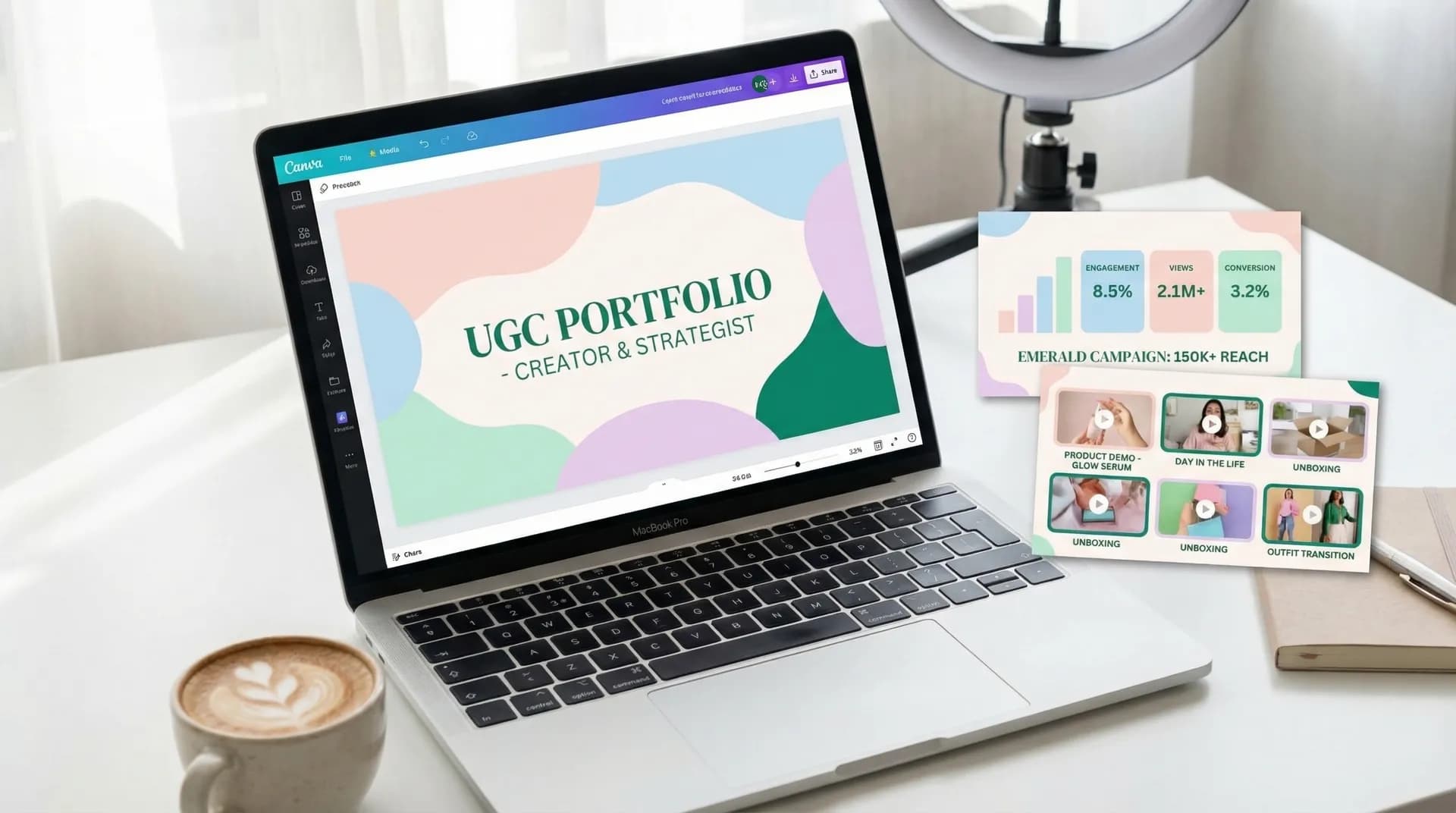
How to build a UGC portfolio in Canva (step-by-step)
Build a professional UGC portfolio in Canva from scratch using free tools. A hands-on walkthrough covering every slide brands actually want to see.

I've reviewed hundreds of UGC creator pitches since building Crelio. Most of them lose the deal before a brand even watches the first video — because the portfolio looks like it was thrown together in Google Slides at midnight.
The good news: building a clean, brand-ready canva ugc portfolio takes about two hours, costs nothing, and will immediately put you ahead of 80% of the competition. I'm going to walk you through exactly how to do it.
This isn't a "here are some tips" post. This is the actual build, slide by slide.
Why Canva for your UGC portfolio
Canva is the right tool for this. Not because it's the only option, but because it gives you:
- Presentation format that brands can view without downloading anything
- Shareable links that work on mobile (brand managers pitch review internally on Slack, not email attachments)
- Free access to professional fonts, mockup frames, and grid layouts
- Easy PDF export when a brand requests it
Adobe Express and Google Slides both work fine. But Canva's template library and drag-and-drop mockup frames cut the production time in half. That matters when you're pitching 20 brands a month.
One thing Canva won't do for you: decide what goes in the portfolio. That's the harder problem. Check out our guide on how to build a UGC portfolio that wins brand deals first if you haven't mapped out your sections yet — then come back here for the Canva execution.
Setting up your Canva workspace
Go to canva.com and create a free account if you don't have one. Then:
Create a new design → Presentation (16:9)
Don't use the "Portfolio" template category. Those are built for visual designers — lots of full-bleed photography grids that don't translate well for UGC. You want a presentation format. Brands are used to reading pitch decks, and a 16:9 slide format is exactly what they expect.
Once you're in, dismiss the template suggestions and start from a blank slate. Pick your background color — I recommend white (#FFFFFF) or a very light grey (#F7F7F7). Your content is the star. Don't let a loud background fight it.
Set your brand palette before touching anything else. Click the color picker and add your 2-3 signature colors. If you don't have a personal brand palette yet, pick one dominant color (something like a warm coral, a slate blue, or an emerald green) and use it consistently for headings and accents. Consistency across slides is what makes a portfolio look designed vs. assembled.
Slide 1: The cover page
This is your first impression. Keep it tight.
What goes on it:
- Your name or creator handle (big, centered, bold)
- A one-line description: "UGC Creator | Skincare · Wellness · Home" — categories, not a bio
- Your headshot or a still from your best video, placed in a circle or clean frame
- Contact info: email + Instagram handle
How to do it in Canva:
- Add a text box for your name. Use a bold sans-serif like Montserrat Bold or Inter Bold at 48-60pt
- Add your category line below in a lighter weight, 20-24pt, using your accent color
- For the photo: Elements → Frames → Circle frame. Drag your headshot in. Resize so it takes up roughly one-third of the right side of the slide
- Add a thin horizontal line (Elements → Lines) between your name and the category text for structure
Don't put your portfolio stats here. Don't write a paragraph. The cover is a door — it opens, then you walk people through.
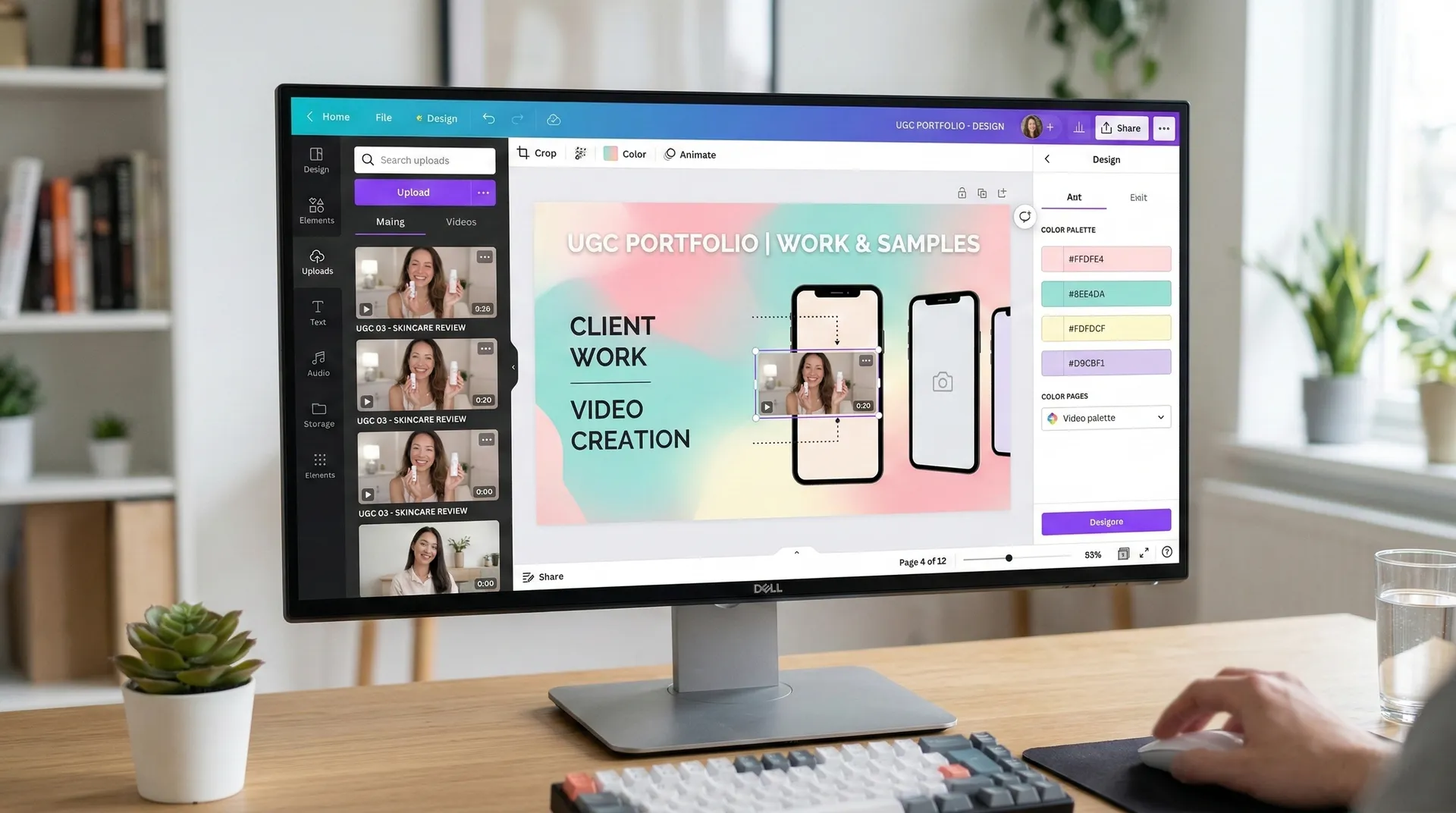
Slide 2: Your "about me" — but make it useful
This is not a biography. Brands don't care where you grew up. They care whether you're right for their product.
Write 3-4 bullet points that answer:
- What niches you create in (be specific — "wellness supplements and clean skincare" beats "health")
- What platforms you're active on
- What formats you produce (UGC videos, lifestyle photos, unboxings, tutorials)
- One sentence on your production setup if it's relevant ("I shoot on iPhone 15 Pro with natural light — no heavy post-production aesthetic")
In Canva: Use a two-column layout. Left column: your 3-4 bullet points as clean text. Right column: a 2x2 grid of your best content stills, dropped into square frames (Elements → Frames → Square). Keep all four images consistent in tone — don't mix a gym selfie with a professional flat lay.
Slide 3: Content samples — the most important slide
This is where 90% of creators make the mistake of dumping a gallery of thumbnails and calling it done. Wrong approach.
Brands want context. Show the video thumbnail and the result it drove.
Format each sample like this:
- Content thumbnail or still (left side, 60% of the slide)
- Brand name + product type (right side, top)
- Platform + format type (e.g., "TikTok • Unboxing")
- One metric if you have it: "Generated 2.1M views organically" or "Used in brand's paid ad campaign for 3 months"
Do this for your 3-5 best pieces. One piece per slide. Yes, that's 3-5 slides — this section is worth it.
If you're just starting out and don't have brand work yet, this is where spec content goes. Label it clearly as "Spec content — [Brand name]" so brands know it's self-initiated. 15 UGC portfolio examples that actually land brand deals shows real creator portfolios that do this well — including a few that launched from zero paid work.
In Canva: For the thumbnail, use Elements → Frames → Rounded Rectangle. Drop your image in. For the metric, create a small colored pill/badge shape (use your accent color at low opacity as fill) and put the number inside in bold text. Clean, scannable, professional.
Slide 4: Stats and social proof
One slide. Don't spread this across three.
Include:
- Your best engagement rate (not just follower count)
- Total content views or plays if notable
- Number of brand collaborations completed
- Any testimonials — even one sentence from a happy brand contact is worth including
If your follower count is low but your engagement rate is strong, lead with engagement rate. A creator with 3,000 followers and 8% engagement rate is more valuable to most brands than someone with 50,000 followers at 0.4%. Why brands are shifting budgets from influencers to UGC creators covers exactly why performance metrics beat vanity metrics now.
In Canva: Create 3-4 stat boxes using rounded rectangles. Light colored fill (use your palette's soft tones), bold number in your accent color, small label text below. Arrange them in a horizontal row across the center of the slide.
Slide 5: Packages and rates (optional but recommended)
Controversial opinion: put your rates in the deck.
Brands appreciate not having to ask. It signals confidence and saves everyone a round-trip email. You don't have to list exact numbers — ranges work. "UGC video packages starting at $150 per deliverable" tells a brand what tier they're dealing with without locking you into a fixed price.
If you're not ready to publish rates, skip this slide. But know that brands who can immediately see whether you're in their budget will move faster.
Slide 6: Contact and call to action
End the deck. Don't let it just stop.
One clean slide with:
- "Let's work together" or similar (not cringe, just direct)
- Your email address (clickable if exported as PDF)
- Your portfolio site if you have one
- Instagram / TikTok handle
That's it. No essay. No "thank you for your time." Just make it easy to reach you.
Exporting and sharing your canva ugc portfolio
For sharing via link: Click Share → "Anyone with the link can view" → Copy link. This is what you paste in emails and DMs. Canva presentations open directly in browser — no login required for the viewer.
For PDF export: File → Download → PDF Standard. Use this when a brand's media kit form asks you to upload a document. For pitching with video samples, the Canva link is always better because PDFs don't play video.
For a portfolio website: Canva now lets you publish your presentation as a public website. It gives you a canva.site URL that works as a lightweight portfolio page. Not a replacement for a proper site, but useful when you're starting out.
Once you've built the deck, go back and read our UGC portfolio template: the exact sections brands want to double-check you haven't missed anything brands consistently flag as missing.
Common mistakes to fix before you send it
Too many fonts. Pick two. One for headings, one for body. Full stop.
Low-res images. Canva compresses on upload. Always start with the highest-res version of your stills. Blurry thumbnails in a portfolio are an instant credibility hit.
No white space. Slides that are packed edge-to-edge feel anxious. Leave room to breathe. The content sells itself — it doesn't need to shout.
Generic Canva templates. If a brand manager has seen the same turquoise gradient template six times that week, yours won't stand out. Customize beyond the template. Change the colors. Replace all placeholder fonts. Make it feel like yours.
Frequently Asked Questions
Is Canva free for building a UGC portfolio?
How many slides should a UGC portfolio have?
Can I use Canva to share my UGC portfolio as a link?
What if I don't have any paid UGC work yet?
Should I include my rates in my Canva UGC portfolio?
What size should I use in Canva for a UGC portfolio?
Related reading
- How to build a UGC portfolio that wins brand deals — The full pillar guide covering strategy, positioning, and structure
- 15 UGC portfolio examples that actually land brand deals — Real examples to benchmark your deck against
- UGC portfolio template: the exact sections brands want — The section-by-section breakdown brands use to evaluate creators
- How to land your first UGC campaign as a creator — What to do once your portfolio is ready to pitch